Dual-Mode Xbox 360-Style Controller for PC & Console
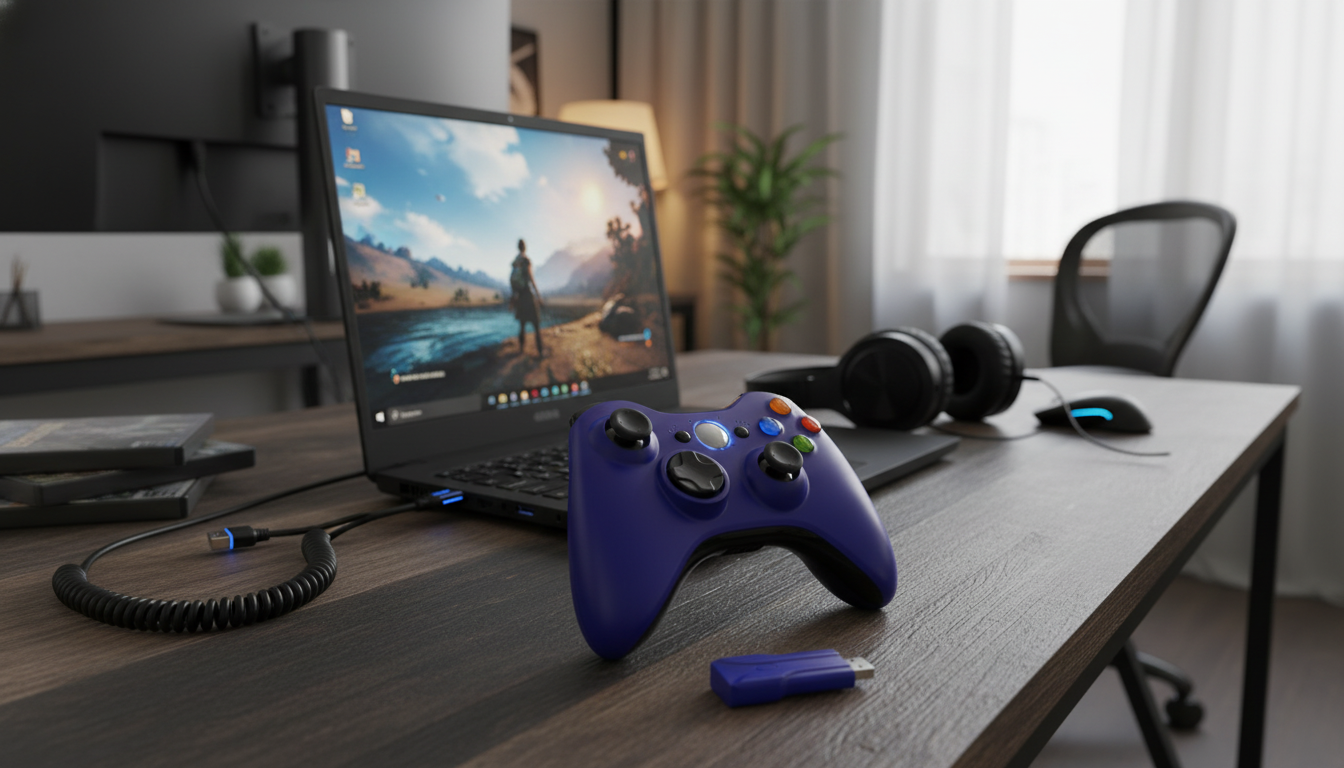
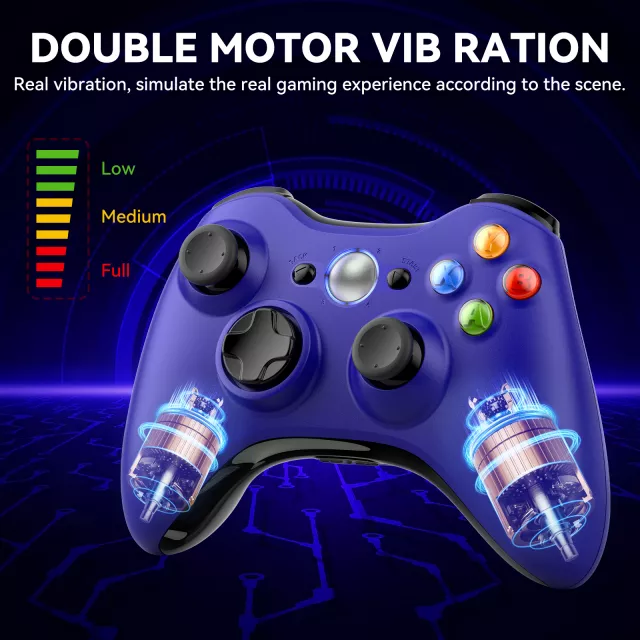
Wireless/Wired Xbox 360 Controller for PC & Console – USB Gamepad with 2.4G Support
A flexible controller setup makes it easier to move between a desk gaming PC and a living-room console-style experience without changing how the game feels in hand. This Xbox 360–style gamepad supports both wireless play (2.4G) and wired USB use, giving two practical ways to connect depending on where and how you play. The result is a familiar layout for racing, sports, action, and co-op titles—plus the option to plug in for stable input or go wireless for a cleaner setup.
What this controller is designed for
- Switching between PC and console-style setups while keeping the same button layout and grip shape.
- Fast pick-up play: connect by USB when you want a straightforward, low-hassle session.
- Wireless convenience for couch play, presentations on a TV, or minimizing cables around a desktop.
- A comfortable general-purpose gamepad for a broad range of genres, from platformers and fighters to shooters and driving games.
Two connection modes: wireless 2.4G and wired USB
Having both wireless and wired options is less about “which is better” and more about matching the mode to the room. A desk setup often rewards the simplicity of a direct connection, while a living-room layout usually benefits from fewer cables and more freedom to move.
- Wireless mode (2.4G): built for freedom of movement and a cleaner look, especially when playing from a sofa or using a large display across the room.
- Wired mode (USB): ideal for stable connectivity and simple setup—useful for competitive play, troubleshooting, or when batteries are low.
- Practical approach: keep USB nearby for quick power needs or as a pairing fallback, and use wireless when the play space benefits from fewer cables.
- Before a long session: confirm the device is recognized by your system and run a quick input test in the game’s controller settings.
| Use case | Recommended mode | Why it fits |
|---|---|---|
| Desk gaming on PC | Wired USB | Simple plug-in setup and steady connection with minimal interruption |
| Living-room TV gaming | Wireless 2.4G | More comfortable distance play without a long cable run |
| Tournaments or high-focus sessions | Wired USB | Consistent connection and fewer variables to manage mid-match |
| Shared family/co-op space | Wireless 2.4G | Less clutter and easier controller hand-off between players |
| Troubleshooting input issues | Wired USB | Direct connection helps isolate pairing or wireless interference problems |
Compatibility and setup notes for PC and console-style play
For PC, the most consistent starting point is a wired USB connection. Plug in, confirm that the system sees a controller, then launch a game and check its controller menu for prompts, mapping, and vibration settings. Once you’re comfortable that the inputs look correct, switching to wireless is mostly about receiver placement and minimizing interference.
- PC setup basics: connect via USB for the quickest start, then verify inputs in Windows game controller settings or in-game control menus.
- If using wireless: keep the receiver within reasonable distance and away from heavy obstruction; repositioning a USB receiver can improve stability.
- Game support varies by title: many modern PC games recognize Xbox-style layouts, and most allow remapping once a controller is detected.
- Older games: may need manual configuration; check each game’s settings for vibration, sensitivity, and layout options.
For additional official guidance on controller connectivity and troubleshooting, Microsoft’s support pages are useful references: Microsoft Support: Connect an Xbox Wireless Controller to a Windows device and Microsoft Support: Troubleshoot issues with an Xbox controller.
Comfort, control feel, and everyday usability
For long sessions, familiarity matters. The Xbox 360–style shape is a proven design for a reason: it supports relaxed hand placement while keeping essential controls within easy reach. That makes it a solid everyday option whether you’re grinding in an RPG, hopping into a racing game for 20 minutes, or passing a controller around during co-op.
- Ergonomic, familiar shape: suited for longer sessions, with grips that work well for different hand sizes.
- Analog sticks and triggers: support nuanced control for acceleration, aiming, and camera movement.
- D-pad and face buttons: useful for menu navigation, fighters, retro titles, and quick inventory actions.
- Consistency tip: tune sensitivity and dead zones inside each game rather than relying on one universal setting.
Getting reliable performance: tips for low lag and fewer disconnects
Most “lag” complaints trace back to environment and placement rather than the controller itself—especially in rooms packed with wireless devices. A few quick adjustments can make wireless feel far more stable, and a wired connection is always a dependable fallback when you want to remove variables.
Quick care and longevity
Product options (in stock)
- Wireless/Wired Xbox 360 Controller for PC & Console – USB Gamepad with 2.4G Support ($23.67)
- Spring Plaid Wide Padded Headband – Chic Cotton Blend Hair Accessory ($5.97)
- Retro Corduroy Hair Scrunchies & Headbands – Large, Soft & Stylish ($5.51)
FAQ
Can this controller be used on a PC with a USB connection?
Yes. A wired USB connection is typically the simplest way to use it on a PC—plug it in, then confirm it appears in Windows controller settings or inside the game’s control menu so you can verify mapping and prompts.
What should be tried if wireless connection is unstable or laggy?
Move the receiver closer (or to a front USB port) and reduce nearby wireless interference; a short USB extension can help bring the receiver into clearer line-of-sight. If the issue persists, switch to wired USB to isolate whether the problem is wireless-related.
Will it work with games that support Xbox-style controllers?
Many PC games that support Xbox-style layouts will recognize the controller and allow button prompts or remapping in the controller settings. Support can vary by title, so checking in-game controller options is the most reliable way to confirm.














Leave a comment