Wireless RGB Controller: Switch 2, PC & Mobile Setup
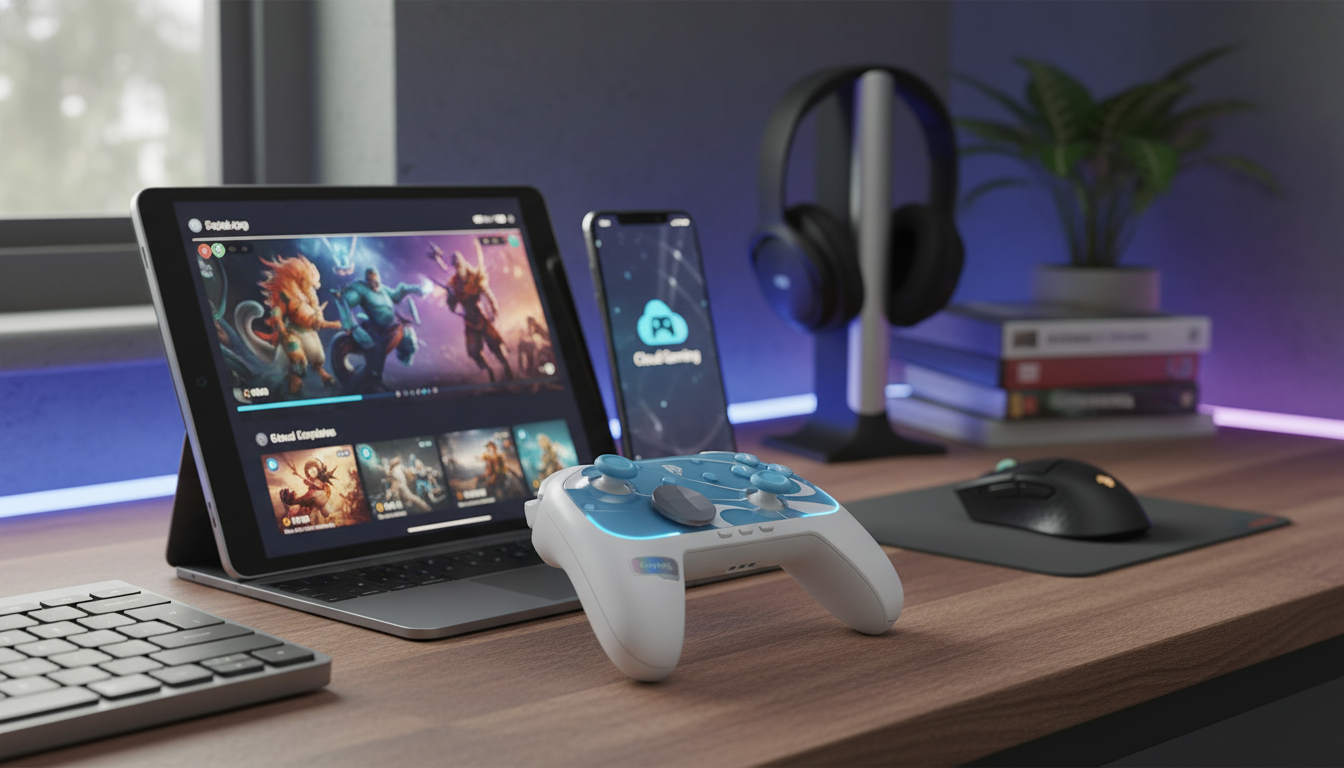
Wireless RGB Game Controller for Switch 2, PC & Mobile Gaming
A single controller that moves with the player across console, PC, and mobile makes game time simpler—especially when it adds customizable RGB lighting for style and quick visual cues. This guide breaks down compatibility, comfort, control features, setup steps, and what to expect in everyday play.
What This Controller Is Best For
- Players who switch between Switch 2, PC, and mobile and want one familiar layout
- RGB fans who want lighting that matches a setup, a game theme, or a stream backdrop
- Living-room gaming where wireless freedom matters more than absolute esports minimal latency
- Travel play when pairing to a phone or tablet is more convenient than packing multiple controllers
If you’re shopping for a single do-it-all option, start with the Wireless RGB Game Controller for Switch 2, PC & Mobile Gaming. For comfort during longer sessions (especially when gaming on the go), accessories like the Spring Plaid Wide Padded Headband – Chic Cotton Blend Hair Accessory or Retro Corduroy Hair Scrunchies & Headbands – Large, Soft & Stylish can help keep hair out of your face without needing frequent breaks.
Device Compatibility and Wireless Pairing
This controller is designed for Switch 2, PC, and mobile gaming, but the pairing flow changes slightly depending on where you’re playing. Most connection issues come down to distance, interference, or a device still trying to connect to a previously paired controller profile.
- Supported platforms: Switch 2, PC, and mobile (pairing method depends on device).
- For Switch 2: Pair through the console’s controller pairing screen; keep the controller close during first-time sync.
- For PC: Connect via Bluetooth when available; if the PC lacks Bluetooth, a compatible adapter may be needed.
- For mobile: Pair through the phone/tablet Bluetooth menu; confirm the controller shows as an available device before connecting.
- If pairing fails: Power-cycle the controller, remove/forget the device on Bluetooth, then re-pair.
- For stable connections: Reduce interference by moving away from crowded Wi‑Fi routers, USB 3.0 hubs, or other Bluetooth devices.
Quick Compatibility and Setup Checklist
| Platform | Connection | Typical Setup Steps | Common Fix If Not Detected |
|---|---|---|---|
| Switch 2 | Wireless | Open controller pairing on console → hold pairing on controller → select when it appears | Charge controller → retry pairing near console |
| Windows PC | Bluetooth | Settings → Bluetooth & devices → Add device → Bluetooth → select controller | Enable Bluetooth / use adapter → remove device → re-pair |
| Android/iOS | Bluetooth | Bluetooth settings → Pair new device → select controller → confirm connection | Forget device → toggle Bluetooth → re-pair |
For platform-specific Bluetooth and controller help, official support pages are often the fastest way to confirm menus and steps: Nintendo Support, Microsoft Windows Support, and the Bluetooth SIG overview for general Bluetooth behavior.
Controls, Feel, and Ergonomics
A wireless controller can look great on a desk and still feel wrong after 30 minutes—so comfort matters as much as compatibility. A well-shaped shell should support your palms without forcing your wrists to rotate inward, and the triggers/bumpers should be reachable without stretching.
- Grip and shape: Designed for longer sessions; prioritize hand comfort and easy reach to triggers and bumpers.
- Buttons and D‑pad: Consistent actuation and a predictable reset help with platformers, menus, and quick item swaps.
- Sticks: Smooth travel matters for aiming and camera control; when a game allows it, use dead-zone settings to fine-tune micro-movements.
- Weight balance: A well-balanced controller reduces wrist fatigue during extended play, especially in handheld postures on mobile.
- Best-use scenarios: Action/adventure, racing, couch co-op, and general-purpose play across platforms.
After pairing, take two minutes to dial in sensitivity and camera speed. Small adjustments often do more than changing hardware—especially when moving between a console TV setup and a phone screen.
RGB Lighting: Practical Benefits Beyond Looks
RGB is an obvious style feature, but it can also be functional. In a dim room, lighting makes it easier to reorient the controller quickly after setting it down, and it can help distinguish your controller from someone else’s during couch co-op.
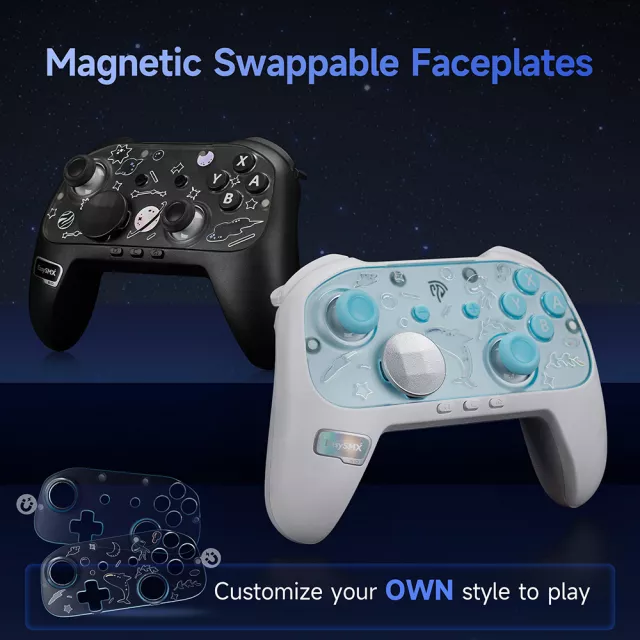
- Customization: Adjust lighting to match a console theme, a PC setup, or a streaming layout.
- Visibility: Helpful in low light when locating buttons or confirming which controller you picked up.
- Mood and immersion: Colors can complement genres (neon for racing, cool tones for sci‑fi, warm tones for RPGs).
- Battery considerations: Brighter and more dynamic effects typically draw more power; dimming can extend play time.
Battery, Charging, and Everyday Reliability
Wireless convenience depends on routine. The easiest way to avoid a mid-match shutdown is a simple “top up when you’re done” habit—especially if RGB brightness is set high.
Getting Started: Fast Setup for Each Platform
Switch 2
PC
Mobile (Android/iOS)
In-game tuning
Who Should Buy It (and Who Might Skip It)
FAQ
Can the controller be used on Switch 2, PC, and mobile without re-pairing every time?
It depends on how each device stores and prioritizes Bluetooth connections. Some platforms reconnect automatically, while others may require selecting the controller again or re-entering pairing mode; if it keeps jumping to the wrong device, forget/remove it in Bluetooth settings and pair fresh.
Does RGB lighting reduce battery life?
Yes—brighter and more animated RGB effects typically use more power than dim or static lighting. If longer play time matters, lower brightness or choose a simpler lighting mode.
What should be checked if there is input lag or random disconnects?
Check distance, battery level, and nearby interference (busy Wi‑Fi routers, USB 3.0 hubs, and other Bluetooth devices). Updating your device OS/drivers and re-pairing after “forgetting” the controller often resolves unstable connections.














Leave a comment